How to configure Adobe Illustrator to display Devanagari (Indic Languages) Typeface properly!
A step-by-step guide to making Adobe Illustrator render Devanagari and other Indic scripts correctly — half letters, compounds, and vowel signs included.
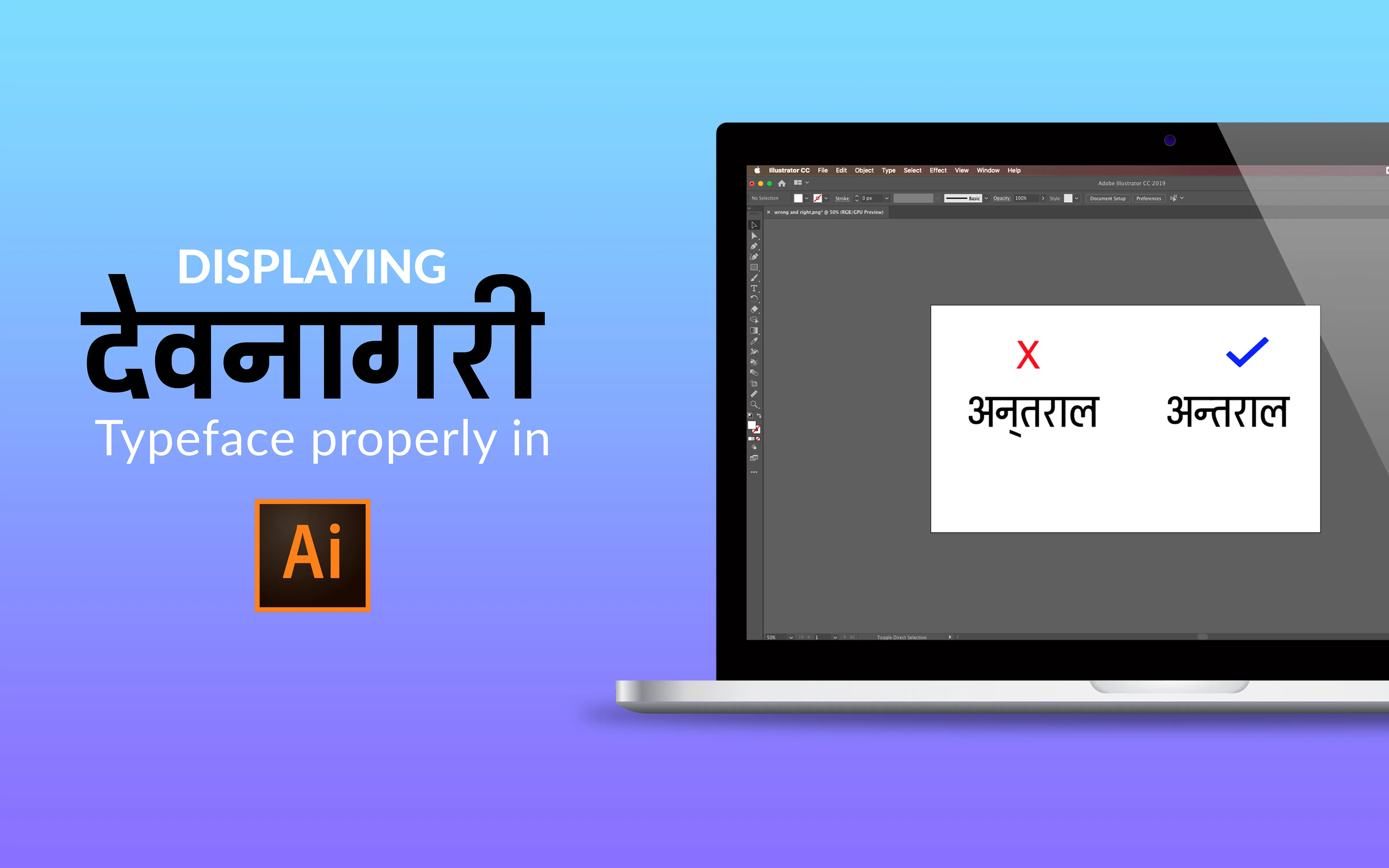
This blog focuses on Devanagari script but it works for all the other Indic (Indo-European) Languages as well. You may ignore this article if you are not familiar with Devanagari or Indic language fonts.
Devanagari script Introduction
The Devanagari script is composed of 47 primary characters including 14 vowels and 33 consonants, and is being used for over 120 languages around the world. It is written from left to right, and has a strong preference for symmetrical rounded shapes within squared outlines, and a horizontal line that runs along the top of full letters. — Source: Wikipedia
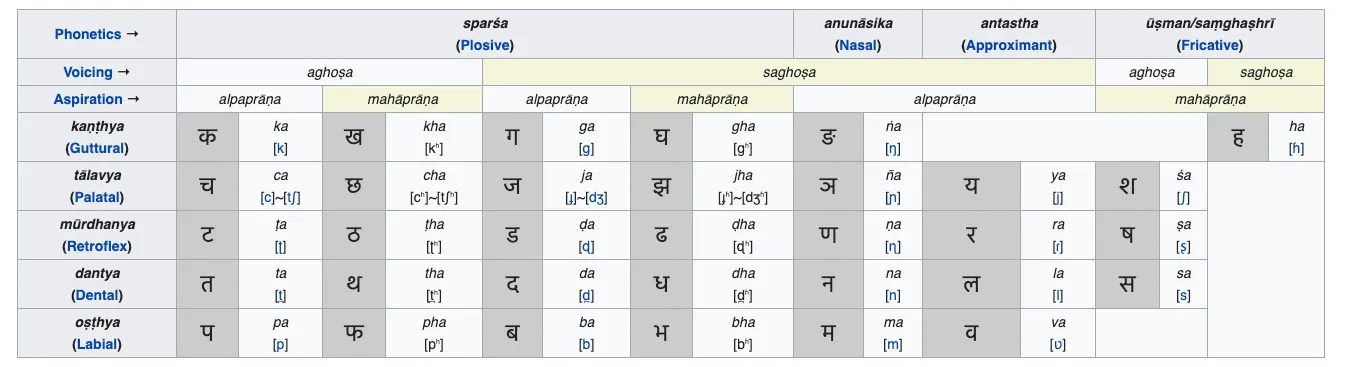
Compound Devanagari Letter and difficulties in its display in Adobe Illustrator

Compound Devanagari letter is composed of a consonant and a vowel sound. These compound forms are called full letters. The letter forms without a vowel sound in Nepali Devanagari are also called half letters. The half letters are written in different formats depending on where they appear on a word and sometimes also on the type of the word in context. Example shown in the images below:
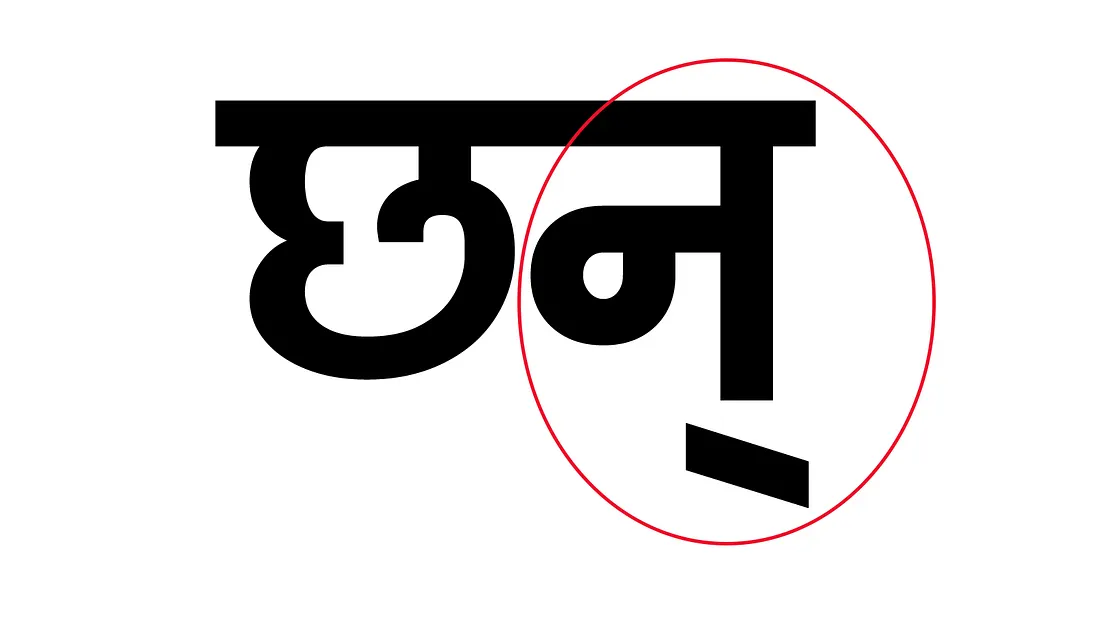
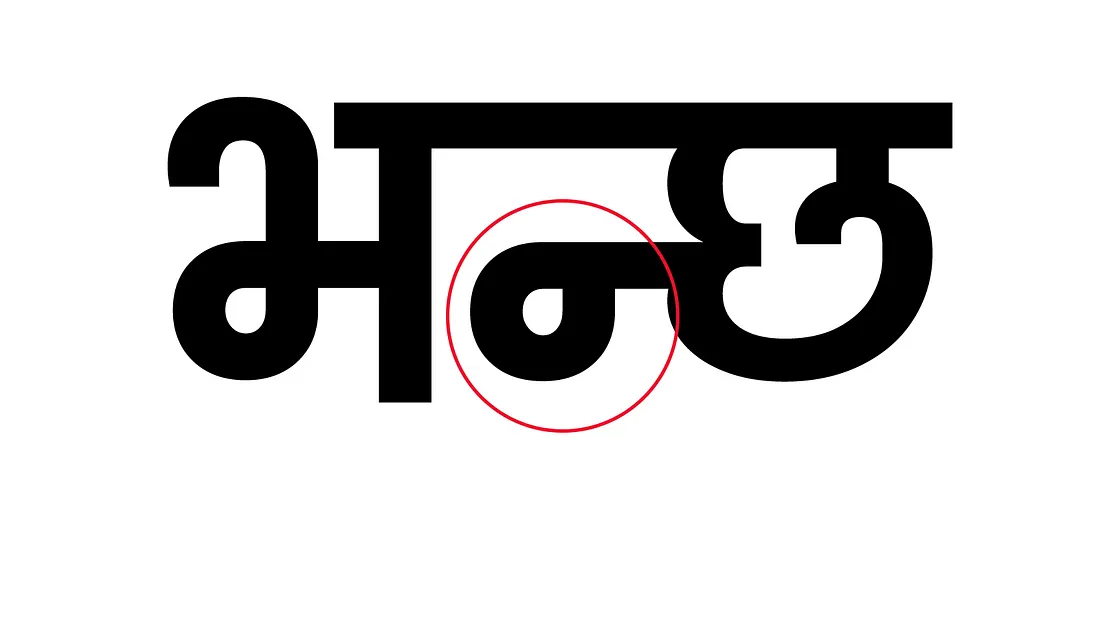
Illustrator, by default has issues in displaying these half letters/consonants correctly. This is a common problem most of us working with devanagari scripts have faced. One of the examples is shown below:
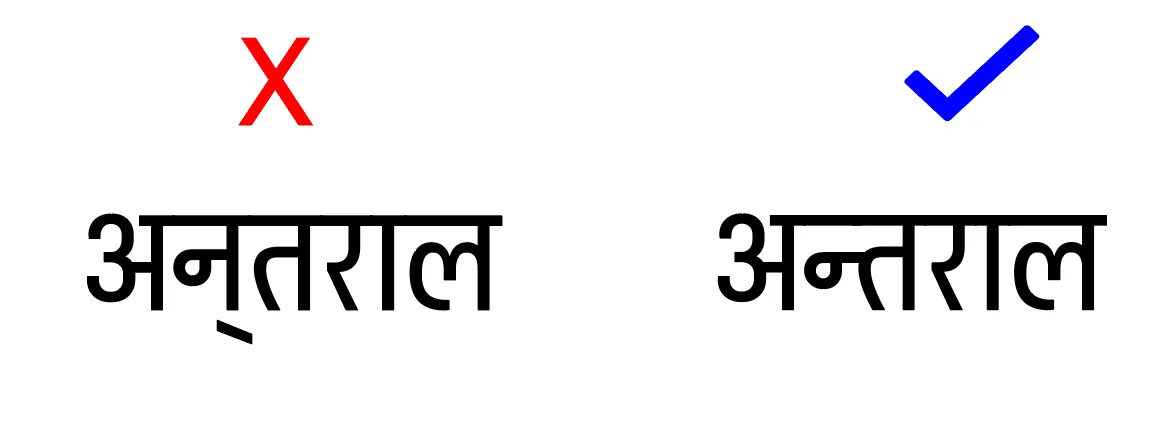
Formerly, the cheat trick I had been using was inserting the consonants from the Glyphs and copying/pasting the texts from Google translator and Unicode websites. That wasn't an efficient technique and was very time consuming process. Thus, I did some research and discovered the solution, which was quite simple and very useful.
Solution
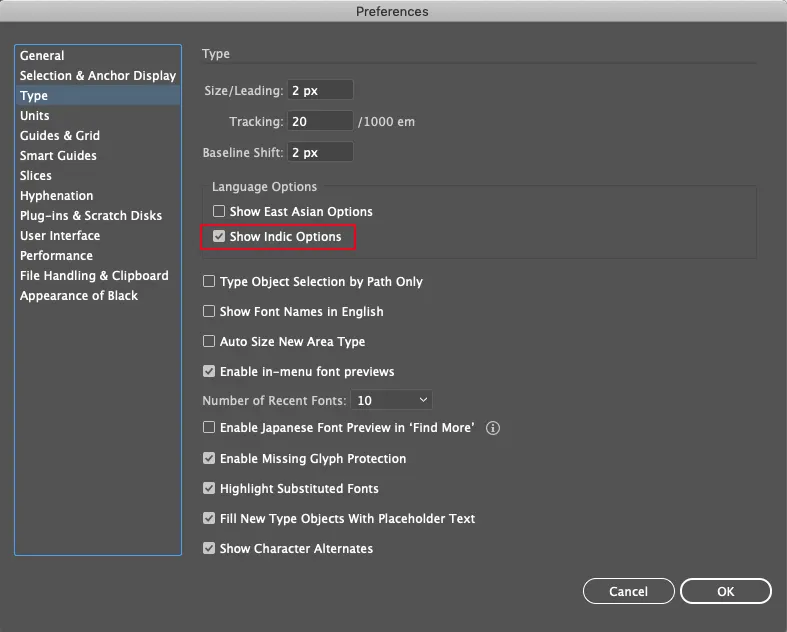
- 1.Open Illustrator > Preferences (Cmd + K — Mac ; Ctrl + K — Windows)
- 2.Choose Edit > Preferences > Type
- 3.Select Show Indic Options
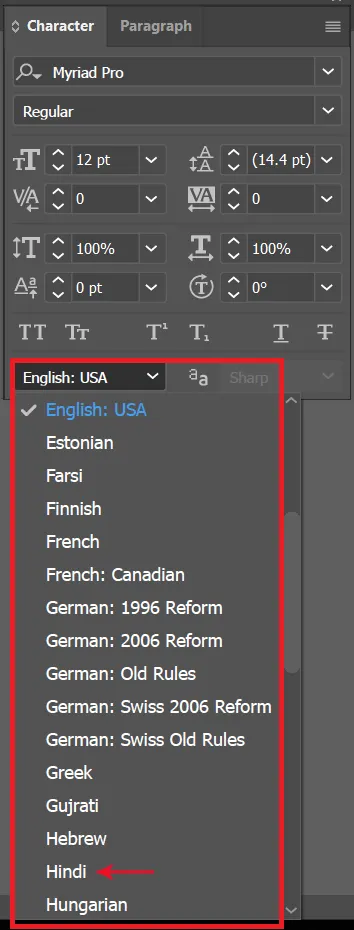
- 4.Create a type layer using the Type tool.
- 5.In the Character panel, select Hindi or any relevant language option in the Language drop-down menu as shown. This option is used to check hyphenation and spelling.
- 6.Select your appropriate Language font. This method of enabling Indic Options should be enabled for the languages mentioned below:
- Indic (Bengali, Gujarati, Hindi, Kannada, Malayalam, Marathi, Oriya, Punjabi, Tamil, Telugu)
- Middle Eastern (Arabic, Hebrew)
- & others.. — Source: Composers for Asian Scripts > Adobe.com
Select a composer
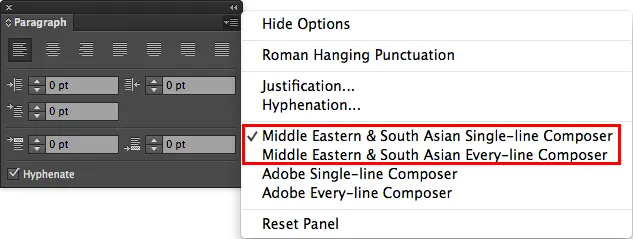
When you enable Indic language options, the following composers are available in the flyout menu of the Paragraph panel, select according to your requirement.
Now, you may type your Devanagari typeface flawlessly without any errors!!